
Install
Run the installer. VolumeKeys appears in the menu bar. No Terminal and no complicated setup.
 VolumeKeys
Audient iD family · Tested with iD14 MKII
Control compatible stereo outputs on your Audient iD interface with your Mac's F10-F12 keys. Tested in our studio with iD14 MKII. Use every feature free for 7 days on your own Mac before you decide.
Interactive VolumeKeys preview. Device names and output pairs shown are illustrative; exact choices depend on the device, driver and macOS configuration.
More than volume
Control a compatible Audient iD family stereo output with F10, F11 and F12. Switch between available output pairs for different monitor sets, check mono, audition the low end with Bass Focus and reduce bass spill with Bass Night, all from the keyboard.
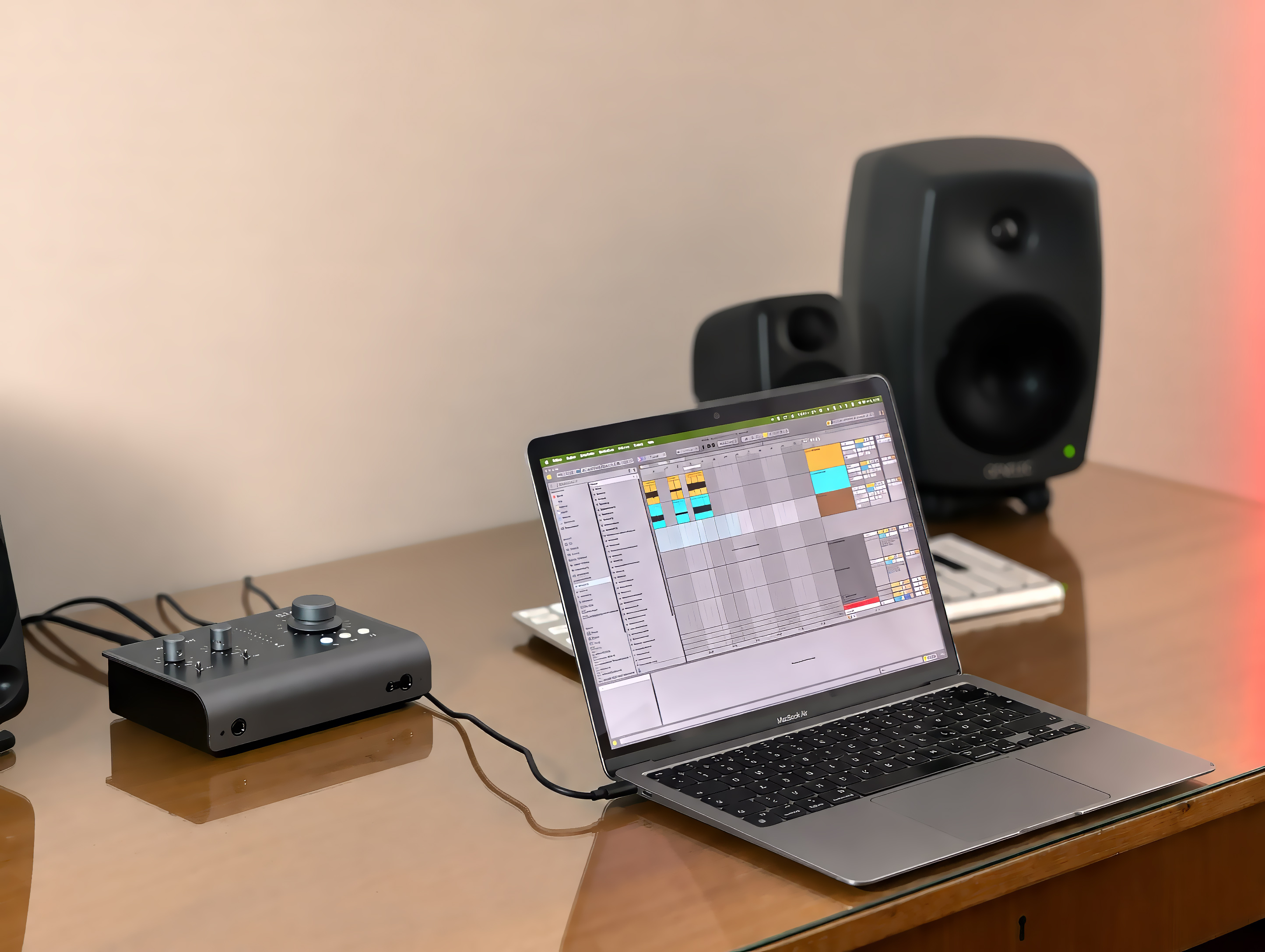
Tested with iD14 MKII
In our studio test, VolumeKeys selected the iD14 MKII as a Core Audio target and the chosen route responded to mute, volume down and volume up. The free trial lets you confirm the same workflow with your own output pair.
45-second product tour
See how VolumeKeys controls a selected Mac playback route with F10, F11 and F12 and stays quietly in the menu bar.
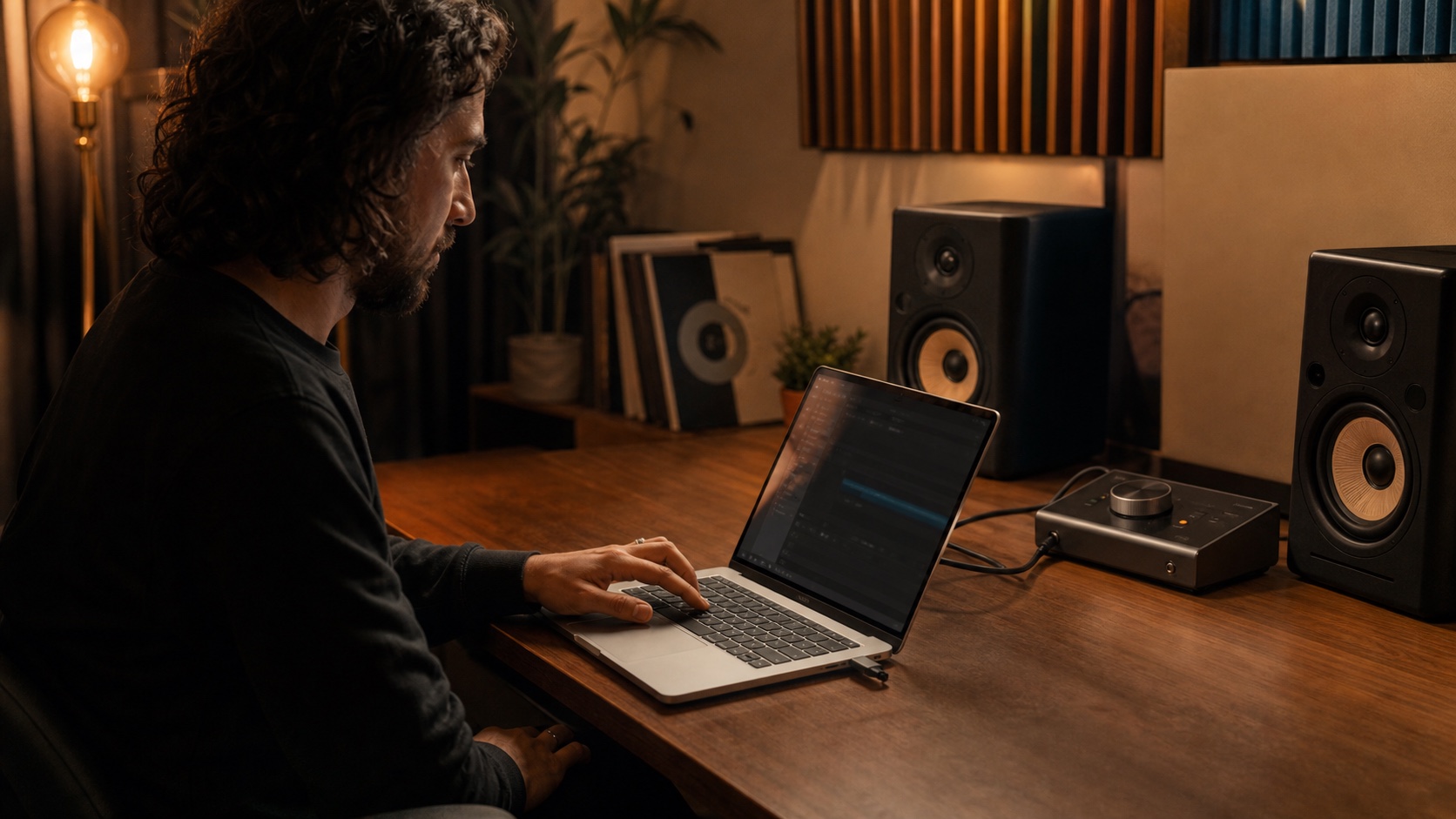
The product tour demonstrates the same VolumeKeys workflow across compatible interface families.
How it works
Install VolumeKeys, choose your Audient iD interface, and keep using your Mac the way you already do.
Run the installer. VolumeKeys appears in the menu bar. No Terminal and no complicated setup.
Select your Audient iD interface and the stereo output pair shown by VolumeKeys. Available pairs depend on your model, driver and macOS configuration.
Press F10, F11 or F12 to mute, turn down or turn up. That’s it.
VolumeKeys with your Audient iD interface
Use the keyboard for Mac playback, keep the Audient encoder for physical monitor level, and reach every listening tool from the menu bar.
Digital monitor controller
When the device and driver expose more than one compatible stereo pair, VolumeKeys can remember a separate level for each available pair and switch between those selected routes.
High-precision 32-bit floating-point volume processing designed for transparent monitor control.
Digital attenuation
VolumeKeys attenuates the routed Mac signal and is not designed to add gain above the source level. Set your interface or monitor control for the physical listening level you want.
Private by design
Your audio is processed locally and is not sent to our servers by VolumeKeys. The app contains no ads or app-usage analytics.
Controlled changes
VolumeKeys fades device and output-pair changes through silence, then returns to the level saved for your Audient iD interface. Each available pair keeps its own remembered level.
Hear both channels together to spot phase and balance problems.
Focus isolates everything below 150 Hz for precise low-end decisions. Night focuses its processing where bass becomes physical. A purpose-built low-frequency DSP algorithm reduces the deep energy that makes rooms and walls vibrate while keeping the musical body of the mix intact. You hear a full, balanced sound at night, while less bass travels next door.
Follows the active hardware/DAW buffer without a second competing setting.
If the selected interface or display disconnects, VolumeKeys automatically returns system playback to the current macOS default output.
Recording
Select your Audient iD interface in your DAW for recording. VolumeKeys can control normal Mac audio at the same time.
Global shortcuts
Switch monitor pairs, toggle VolumeKeys, check mono and audition both bass modes from anywhere on your Mac.
Only available output pairs get a shortcut. Each global shortcut is registered independently, so a conflict on one shortcut does not disable the others.
Why VolumeKeys helps with the Audient iD family
An Audient iD interface can play Mac audio normally even when macOS treats its output as fixed-level. When no settable system master volume is exposed, the standard Mac volume keys may be unavailable.
VolumeKeys creates a software-controlled route to the selected output. F10–F12 control routed Mac audio while the Audient iD family hardware keeps its physical monitoring functions.
7 days free.
Use every feature free for 7 days on your own Mac, then decide in your own time. No payment details are required.
7 days free. Just download. No payment details required.
Audient iD family FAQ
See exactly what VolumeKeys controls, which stereo path to choose and what remains under Audient hardware control.
VolumeKeys is designed for compatible stereo Core Audio outputs across the Audient iD family. Our documented studio test used iD14 MKII; the complete 7-day trial lets you confirm your own Audient iD interface and playback pair.
macOS can disable its system volume control when an external Core Audio device does not expose a settable master-volume property. VolumeKeys supplies a software-controlled route for compatible outputs.
No. The Audient encoder remains the physical monitor control. VolumeKeys attenuates the routed Mac signal digitally and is not designed to add gain above the source level.
Yes. For recording, select the iD14 directly in your DAW. Normal Mac system audio can use VolumeKeys at the same time.